 Solo Lobby Hook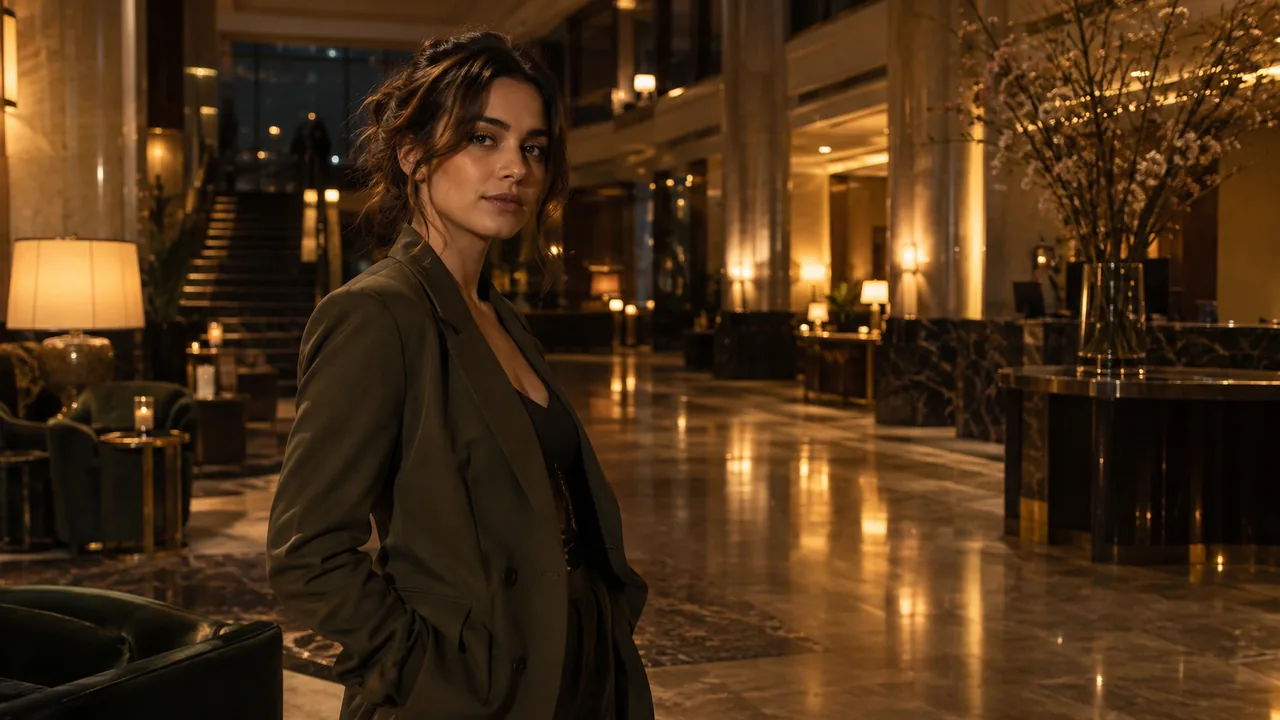
Choose a reference for this scene
Solo Lobby Hook puts one performer on the mic for a short rap hook. Direct delivery, rhythmic hand accents and a shoulder groove give the portrait movement. A warm orange studio keeps the face in focus while the camera moves closer for the hook’s finish.
Exactly one intended performer
Choose a photo with one person. Crop unrelated bystanders out before upload so they do not compete with the intended identity.
A readable eye line
A front or slight three-quarter view gives useful information around both eyes. A profile, heavy sunglasses or a face turned away offers less visible detail.
Room above and below the face
Include the head, shoulders and part of the torso. An extremely tight face crop leaves little source information for rhythmic steps and changing portrait framing.
An outfit you want referenced
Use a source whose clothing is visible and appropriate for the clip. The scene aims to maintain the reference outfit; it is not a wardrobe-selection tool.
Photos to avoid
- A two-person selfie when only one person should appear.
- A face filtered so heavily that skin and facial contours are flattened.
- An out-of-focus portrait with bright lighting behind the subject.
From source portraits to a reviewed clip
Prepare one permitted portrait
Use one person in one portrait. Obtain permission from every identifiable person to appear in a synthetic video. Choose a JPG, PNG or WebP up to 4 MB for each portrait, and inspect facial detail before upload.
Check the local preview
Choose each required file in its own studio slot. Selection creates local previews; it does not submit the images to storage or the video provider. Replace or remove a portrait if its subject, crop or file is wrong.
Choose the frame
Use 9:16 or 3:4 for portrait video, 1:1 for a square post, or 16:9, 4:3 or 21:9 for a wider scene. Changing the aspect ratio does not change the credit cost for the same duration.
Choose your video length
This scene defaults to 10 seconds in 9:16. Your account stores credits; package cards show the video time they cover. A 15-second clip uses more credits than a 10-second clip. Unused credits stay in your balance, and you need enough for at least 10 seconds to start a new video.
Confirm permission, then generate
Use Generate only when the live service is available. The flow connects your account or guest session, uploads the required portraits in slot order and sends the scene request. Complete verification if it is required.
Recover the same task when uncertain
If the response is slow or unclear, use Check progress for the saved task instead of repeatedly starting new requests. Return with the same browser session when possible. An unknown response does not establish that the job failed.
Play the whole result
When the task completes, play the full video and inspect the performance checks below. Save the result while its link is available. Starting another video uses additional credits.
What to check in the completed video
Follow the eyes
Inspect the gaze as the camera angle changes. Unexpected eye drift can undermine the intended direct-camera hook.
Watch facial contours
Check ears, jawline and nose during the arc, particularly if the reference was nearly front-facing.
Compare the outfit
Look for changing collars, accessories or fabric patterns between the wider and closer views.
When the result misses the intention
A bystander appears
Prepare a new source containing only the solo performer. Do not rely on the generator to identify which face in a group was intended.
The camera angle exposes an odd face shape
Try a clear three-quarter portrait for a new render. It provides more visible shape information than an obscured or heavily filtered straight-on face.
The outfit changes during movement
Select a source with a clearly visible collar and torso rather than a tightly cropped face. Output continuity still requires review.
Questions before you start
Is this the one-person version?
Yes. Solo Lobby Hook is the only single-person scene in this collection. Upload one clear portrait of the intended performer.
Does choosing a file upload it immediately?
No. File selection creates a local preview. A live Generate request uploads the source to configured storage and sends its reference to the video service after permission confirmation.
Should I generate again if the request looks stuck?
Check the saved task first. A slow or uncertain response can still belong to an active job. Starting another video uses additional credits.
MAKE YOUR RAP VIDEO